
Getting started with the FloraPulse dashboard
Reading your water-stress data, deciding when to irrigate, and putting the dashboard on your phone
720 Olive Dr Ste E
Davis CA, 95616
(530) 220-7668
Your FloraPulse subscription includes the online dashboard at app.florapulse.com. It shows the water stress of every monitored block, tells you which blocks need water and which can wait, and keeps your irrigation history, notes and reports in one place. There is nothing to install: it runs in the web browser on your phone, tablet or computer.
This guide walks through the dashboard screen by screen. It uses the demo account, so the block names and numbers are made up, but everything you see here works the same way on your own account.
Before you start: setting up your blocks
Install your FloraPulse loggers first (see the installation manual and videos). For each logger, note:
- the logger number (printed on the box),
- the crop and variety,
- the date you installed it,
- what you want to call the block (for example "South Block"), and
- its location: drop a pin on your phone's map app and copy the coordinates, or give us the street address.
Send that list to admin@florapulse.com and we set up your account. Precise coordinates matter: they give you accurate local weather and make the logger easy to find when it needs service.
Signing in
Go to app.florapulse.com. The first time, use the sign-in link we email you; it signs you in without a password and asks you to set one. After that, sign in with your email and password, or tap Email me a sign-in link to get a fresh link instead of typing a password.
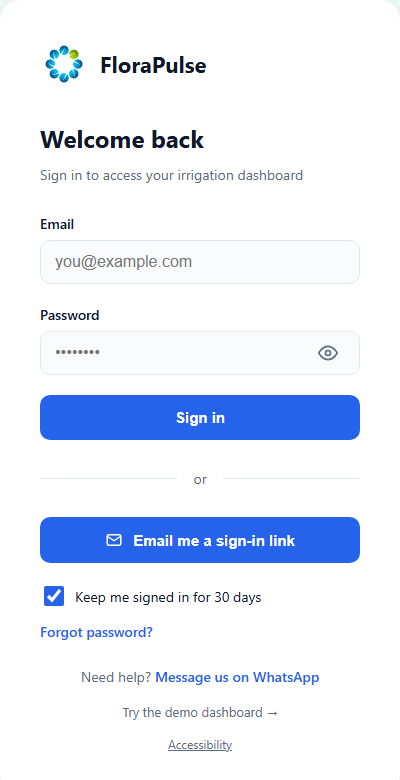
- Keep me signed in for 30 days is on by default, so your phone stays signed in between visits.
- Forgot password? emails you a reset link.
- Need help? on the sign-in screen opens a WhatsApp chat with us.
Put the dashboard on your phone
The dashboard is built for a phone screen, and most growers use it that way in the field. Adding it to your home screen gives you an app icon that opens straight to your blocks.
iPhone or iPad (Safari)
 | 1. Open Safari and sign in at app.florapulse.com. Tap the Share button, the square with an arrow at the bottom of the screen. |
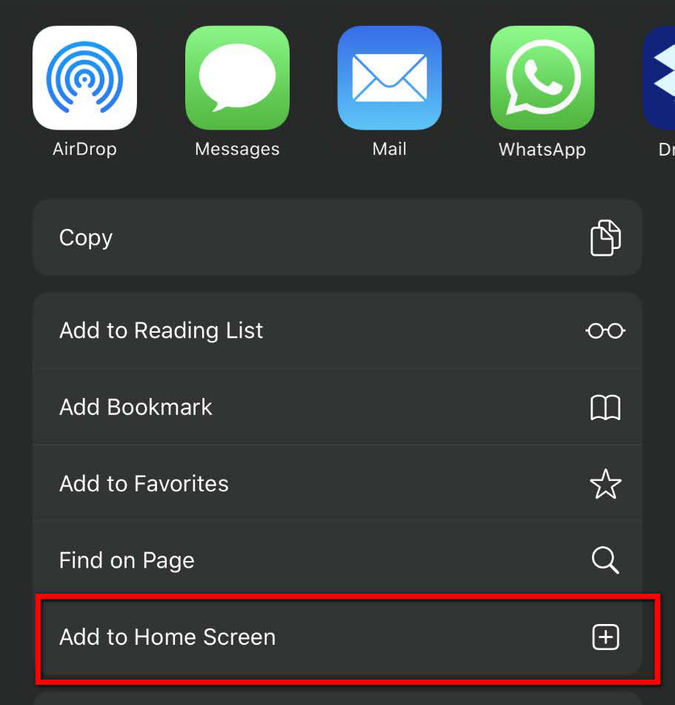 | 2. Scroll down the list and tap Add to Home Screen. |
 | 3. Name it "FloraPulse" and tap Add. |
Android (Chrome)
- Open Chrome and sign in at app.florapulse.com.
- Tap the three-dot menu in the top right corner.
- Tap Add to Home screen (on some phones this reads Install app), name it "FloraPulse", and tap Add.
The FloraPulse icon now opens your dashboard like any other app.
Your farm at a glance
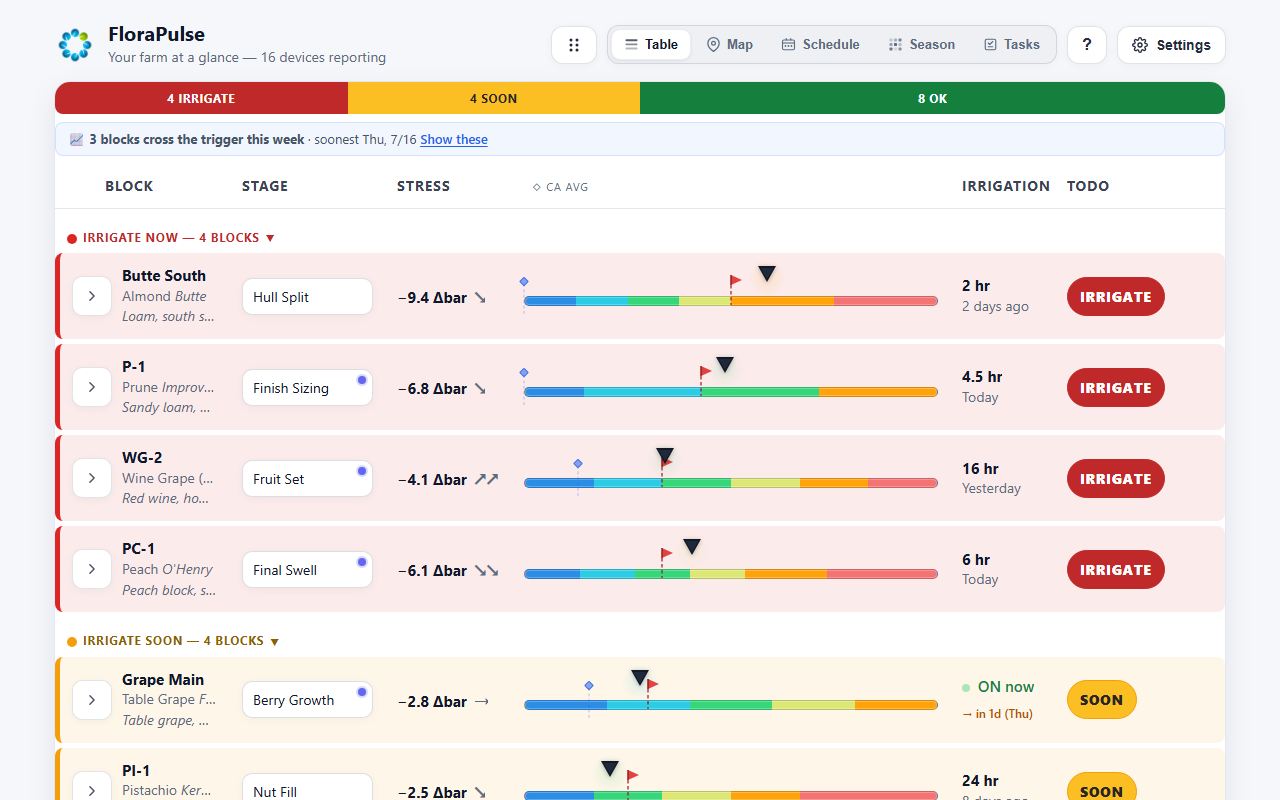
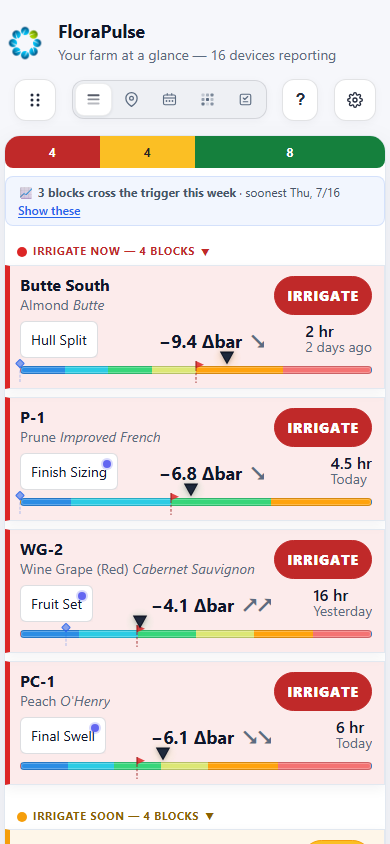
The Table view is the home screen. Every row (or card, on a phone) is one sensor block, and the rows are grouped by what to do: IRRIGATE NOW, IRRIGATE SOON, then OK. The colored bar at the top counts the blocks in each group, and a banner below it tells you which blocks are forecast to cross their trigger this week.

From left to right, each row shows:
- Block: the block name, crop and variety, and any notes you have added. The color of the expand arrow tells you how fresh the data is: green means the logger reported within the last 24 hours, orange 24 to 48 hours, red more than 48 hours. If a logger stays red, we are notified too.
- Stage: the current growth stage. Tap it to open the stage guide and change stages (see below).
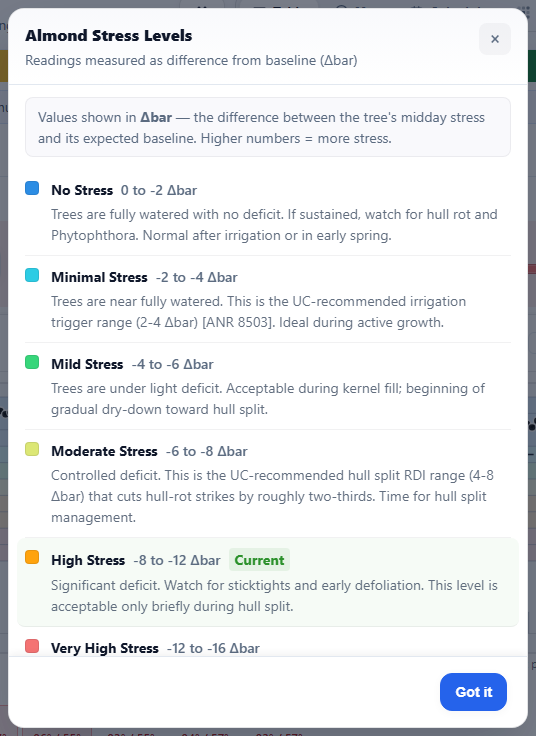
- Stress: the latest water-stress reading. For most crops it is shown as Δbar, how far below its fully-watered baseline the tree is right now. A few crops (apple, citrus, pear) show stem water potential in bar instead. The small arrow shows the trend over the last few days. Tap the reading to see what each stress level means for your crop.
- Status bar: the same reading drawn on a colored scale. The black marker is today's reading, the dashed line with the red flag is your trigger. When the marker passes the trigger, it is time to irrigate.
- Irrigation: ON now while the pressure switch sees water in the line, otherwise the length of the last irrigation and how long ago it ran. If an irrigation is planned, the date is shown underneath.
- Todo: IRRIGATE, SOON or WAIT, worked out from today's reading against the trigger for the current stage. Tap a Todo to filter the table to just those blocks.
Above the table, the header holds the view tabs (Table, Map, Schedule, Season, Tasks), the ? button for the built-in help and glossary, and Settings. The button with the four dots lets you drag blocks into your own order.
What the numbers mean
Stem water potential (SWP) is the water tension inside the tree, measured in bars. The more negative the number, the harder the tree is pulling for water. Every aspect of the plant's performance, from growth to fruit size, is governed by that tension, which is why it is the best single measure of water stress.
SWP swings through every day: least negative before dawn, most negative in the heat of the afternoon. The dashboard's daily reading is the midday value, the single most negative reading the sensor recorded that calendar day. That is the moment of greatest stress, and the guidelines for each crop are written around it.
Baseline is what your tree's midday SWP would be if it had all the water it wanted on that day, in that weather. It is calculated from your location, crop, temperature, humidity and vapor pressure deficit (VPD). Think of it as a "feels-like" temperature for your trees: a reading of −10 bar on a 100 °F afternoon and −10 bar on a mild day mean very different things, and the baseline does that weather arithmetic for you.
Δbar (delta bar) is the difference between today's midday reading and the baseline: 0 means the tree is fully watered, and the more negative the number, the drier the tree from lack of water and nothing else. Because it is already corrected for the weather, Δbar is the number you make irrigation decisions from.
The trigger is the stress level at which the dashboard tells you to irrigate. It is set per crop and per growth stage, and it steps as the stage changes. It is often set to allow a deliberate deficit, for example through almond hull split or wine-grape ripening, because for many crops some stress at the right time is the goal, not a problem. Trees should not sit at baseline for days either: constant wetness invites root disease and wastes water.
The colored bands on the status bar and the chart are a severity scale, not a grade. More stress is not automatically bad, and zero stress is not automatically the goal. The one line that matters is the trigger for your current stage.
Tap any stress reading to see the levels for that crop.
Growth stages
Each crop moves through growth stages with different water needs, and the current stage sets the trigger. Tap the stage in any row to open the picker. It lists the stages for your crop in order, marks the one the calendar suggests, and links to a Stage guide describing each stage and to Customize, where you can adjust the trigger for your own block.
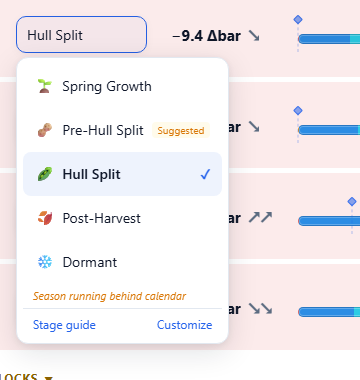
Update the stage as your trees progress through the season. When the calendar suggests it may be time to move on, a stage nudge banner appears in the block's expanded view; you can apply the change or dismiss it.
Inside a block
Tap a row to expand it. The expanded view holds the stress chart, the tools for reading it, and everything you have recorded for that block.
The chart
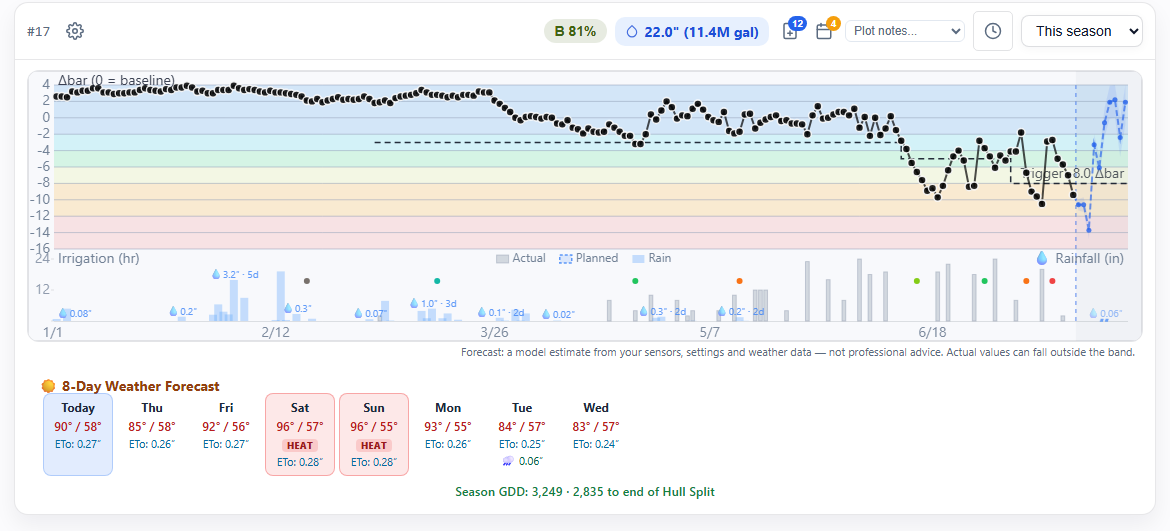
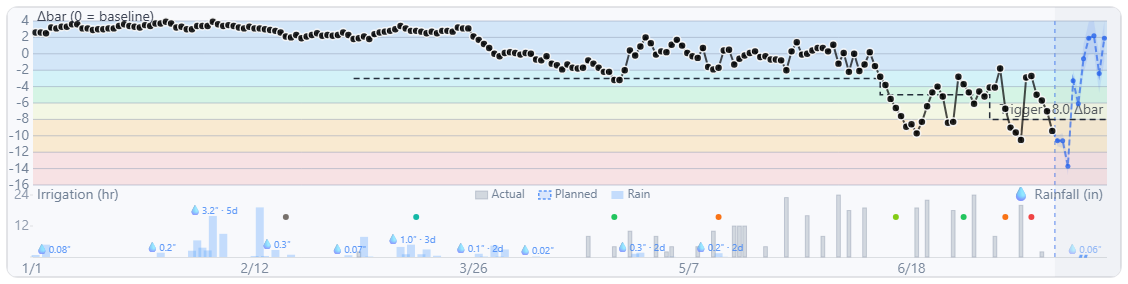
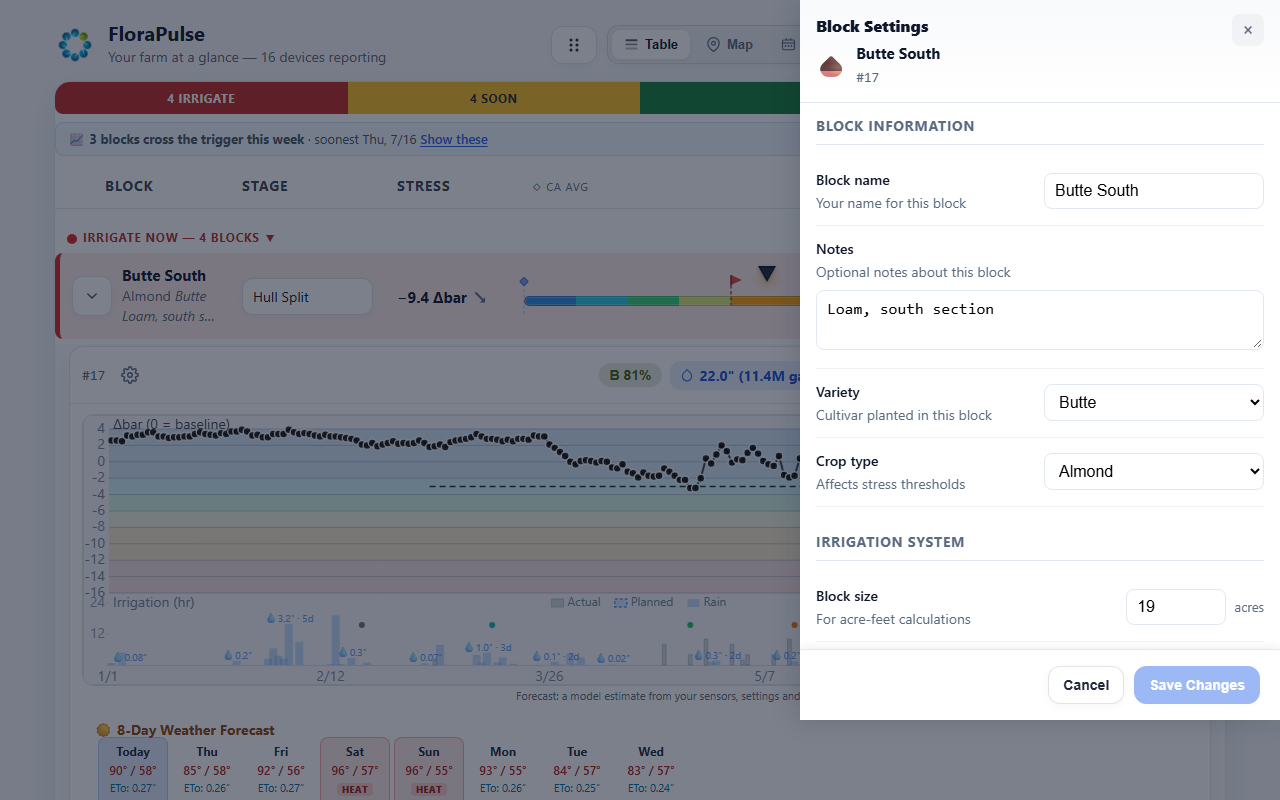
The main chart plots the daily midday reading in Δbar (0 is the baseline) over the colored stress bands, with the dashed trigger line for the current stage. Grey bars along the bottom are irrigation hours from the pressure switch; blue bars are rainfall; lighter bars are irrigation you have planned. The shaded band at the right edge is the forecast: the dashboard looks 7 days ahead using your sensors, your settings and the weather forecast. It is a model estimate, not advice, and actual values can fall outside the band.
- Time range: choose Last week, Last 30, 60 or 90 days, This season or Last season. The default is set in Settings.
- Zoom: pinch or drag to zoom into a period; double-tap or use Reset zoom to go back.
- Hover or tap a point for the exact reading and date.
The 24/7 view
The clock icon switches the chart to the 24/7 view: the raw sensor readings, one every 20 minutes, with no adjustment for weather. Each day the curve climbs overnight to its least negative point near dawn and falls to its most negative point in the afternoon. This is the truest picture of what the sensor sees, and the view to use for watching the tree respond in the hours after an irrigation, checking sensor behaviour, or lining up a pressure-chamber reading with the sensor. Two sensors are installed in each tree for redundancy, so you will see two lines that normally track each other closely.
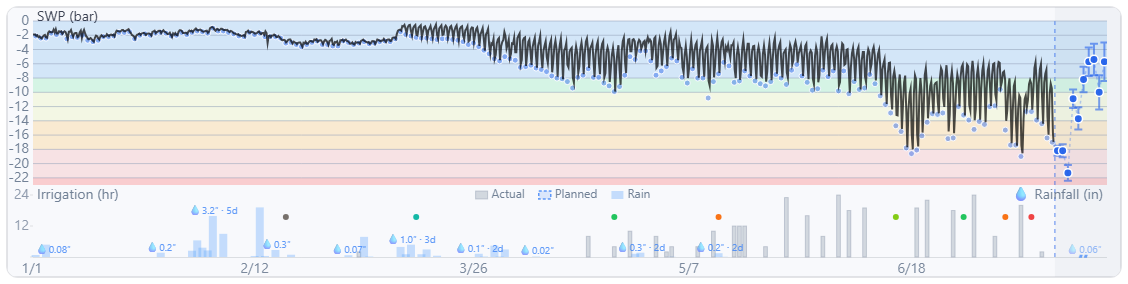
Because the midday value is the most negative point of the day and the Δbar view is weather-corrected, the numbers on the two charts will not line up exactly. That is expected.
Which chart to use: make irrigation decisions from the midday Δbar chart, which is weather-adjusted and shows the trigger; use the 24/7 view to understand what is happening underneath.
Efficiency and water applied
The letter grade next to the block number is the efficiency score: how often, over the selected time range, the block's reading sat in the optimal zone for its trigger. Tap it for the day-by-day breakdown into too wet, wet, optimal, dry and too dry days.
The blue water applied badge totals the irrigation hours in the selected range, converted to inches and gallons using the block size and flow rate in the block settings.
A healthy season looks like a rhythm: irrigate, the reading recovers toward baseline, it dries down again, it reaches the trigger, irrigate. If the reading stays stuck near baseline for days after an irrigation, you are applying more than the tree can use; if it barely recovers, apply more.
Notes and pressure-chamber readings
The Add note button (the icon with the badge showing how many notes the block has) records anything that happened on the block on a given date: irrigation hours you ran by hand, fertilizer, fertigation, sprays, frost or heat events, harvest, pruning, and more. Notes appear as markers on the chart and count toward the block's history in the Season and Tasks views.
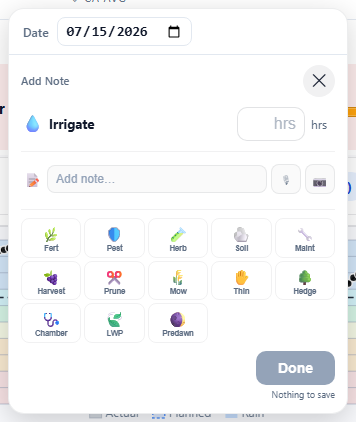
If you still take pressure-chamber readings, record them here too: choose Chamber, enter the value in bar (negative), and pick the date. Then use the Plot notes menu above the chart to overlay your chamber readings on the sensor data and compare the two. Leaf water potential, predawn readings, soil moisture and neutron-probe readings can be plotted the same way.
The Upcoming activities button lists what is scheduled for the block, and the gear icon opens Block settings: the block's name and notes, variety and crop type (which sets the stress thresholds), block size and irrigation system details used for the water calculations, and per-block alert preferences.
Weather and planning ahead
Below the chart, the 8-day weather forecast shows highs, lows, rain and the daily reference evapotranspiration (ETo) for your location, with heat days flagged. Under it, the season's growing degree days (GDD) and the GDD remaining to the end of the current stage.
On any current time range the chart also looks 7 days ahead. Tap a future day on the chart, or one of the forecast cards, and enter the hours you plan to run; the plan shows as a lighter bar so you can see how it fits, and it appears in the Schedule and Tasks views.
The other views
Map
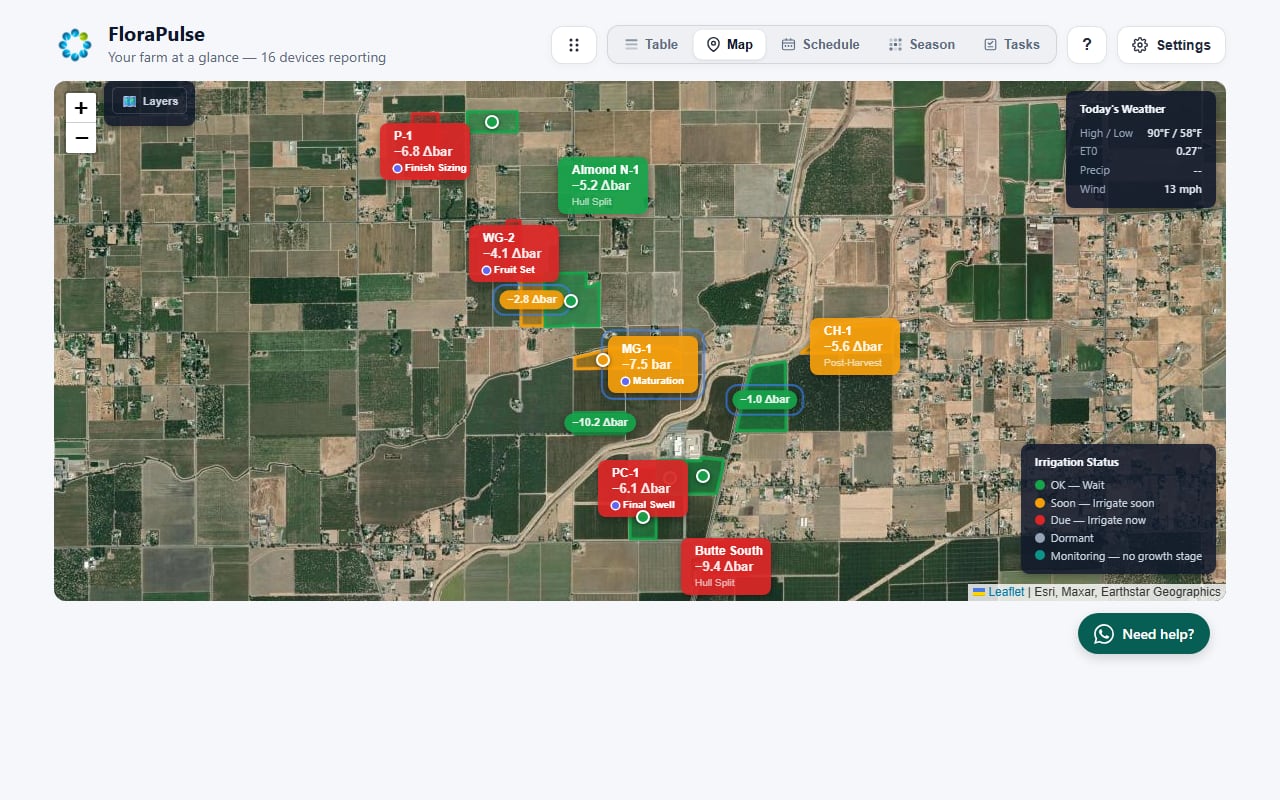
Map shows every block on satellite imagery, colored by status (green OK, yellow soon, red irrigate now, grey dormant, blue monitoring without a growth stage) with its current reading and stage. Tap a block to open its details. The panel in the corner shows today's weather and ETo for your location; Layers switches the base map.
Schedule
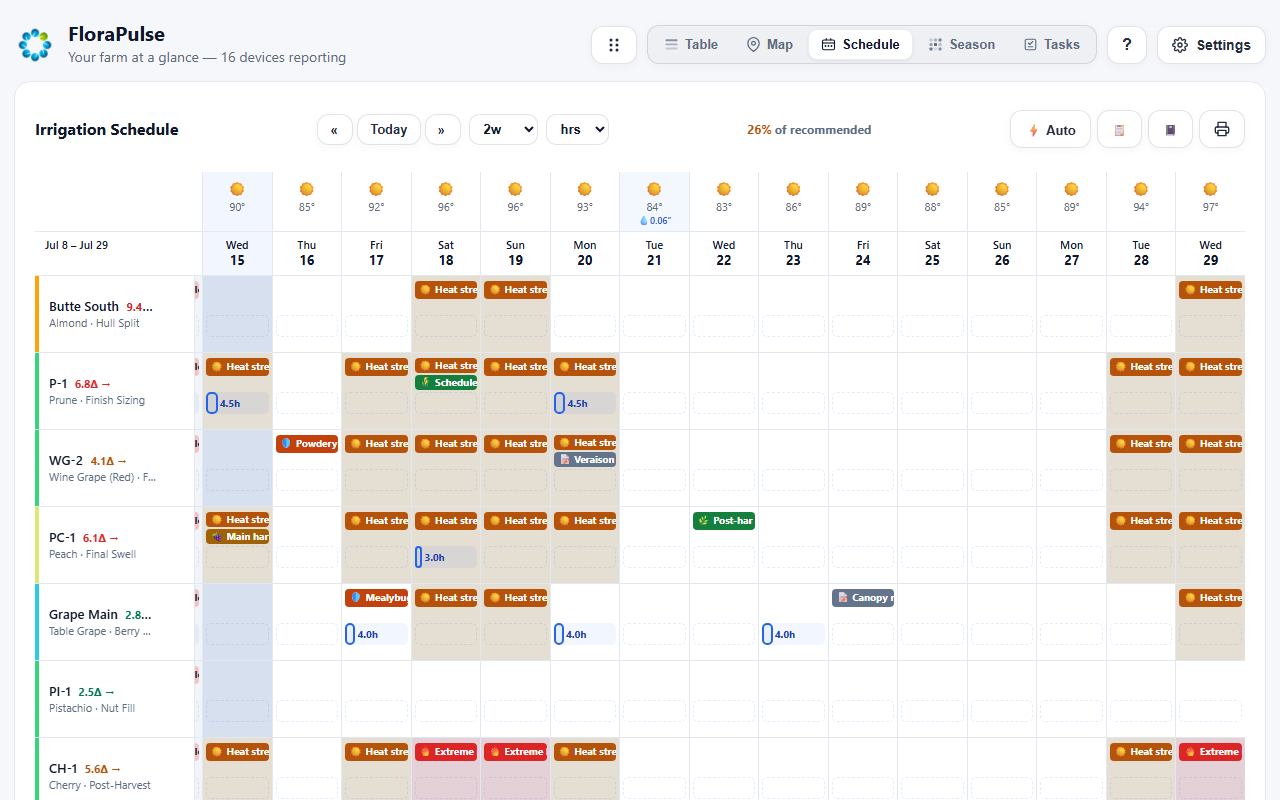
Schedule builds a 14-day irrigation plan for every block from the weather forecast, ET and your triggers, shown in hours, gallons, acre-feet or inches. Recommended hours sit in each cell; planned and completed irrigations are drawn over them, along with heat warnings and your scheduled activities. Auto fills the plan from the recommendations, and the print button gives you a copy for the crew. The totals at the bottom compare what was applied with what was recommended.
Season
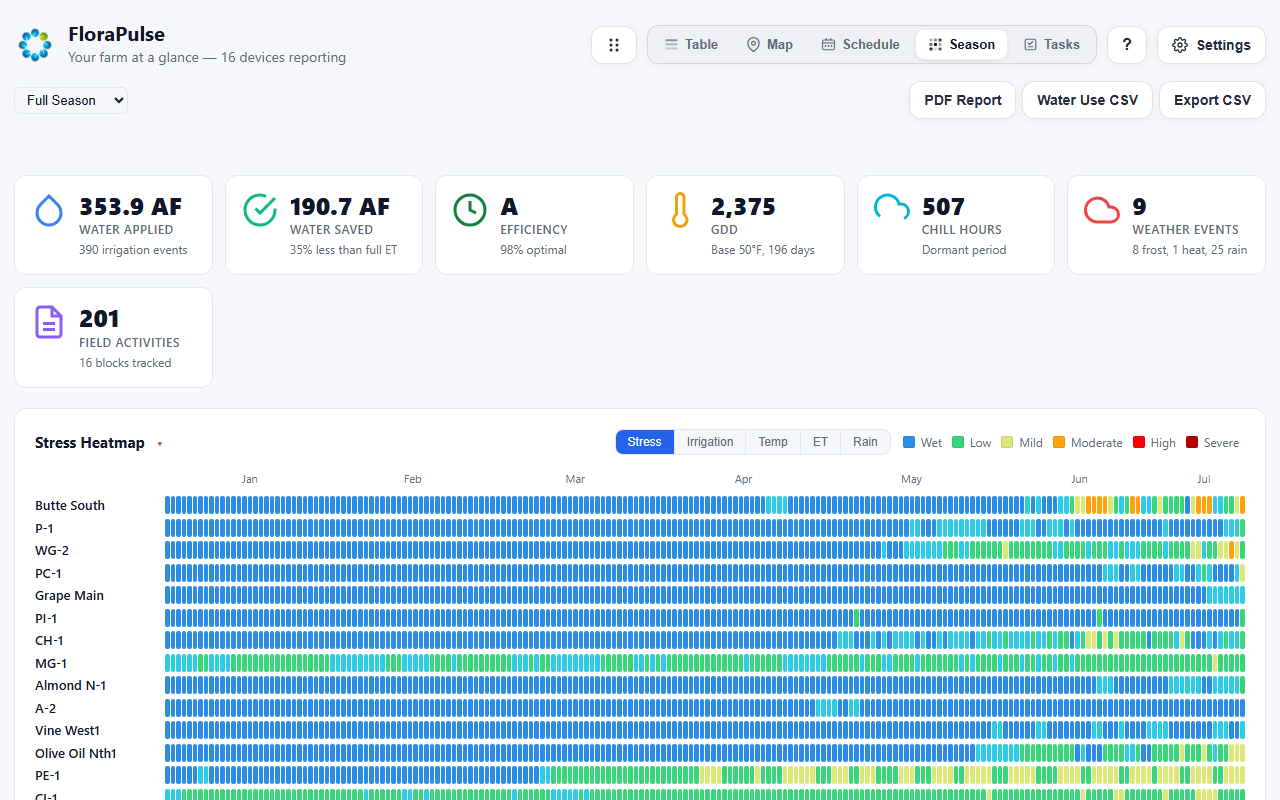
Season is the season-to-date report: water applied and water saved against full ET, the farm's efficiency grade, growing degree days, chill hours, weather events and field activities, then a stress heatmap for every block (switchable to irrigation, temperature, ET or rain), the crop-stage timeline, block totals and harvest results. The buttons at the top produce a PDF report, a water-use CSV for compliance reporting, and a CSV export of the readings.
Tasks
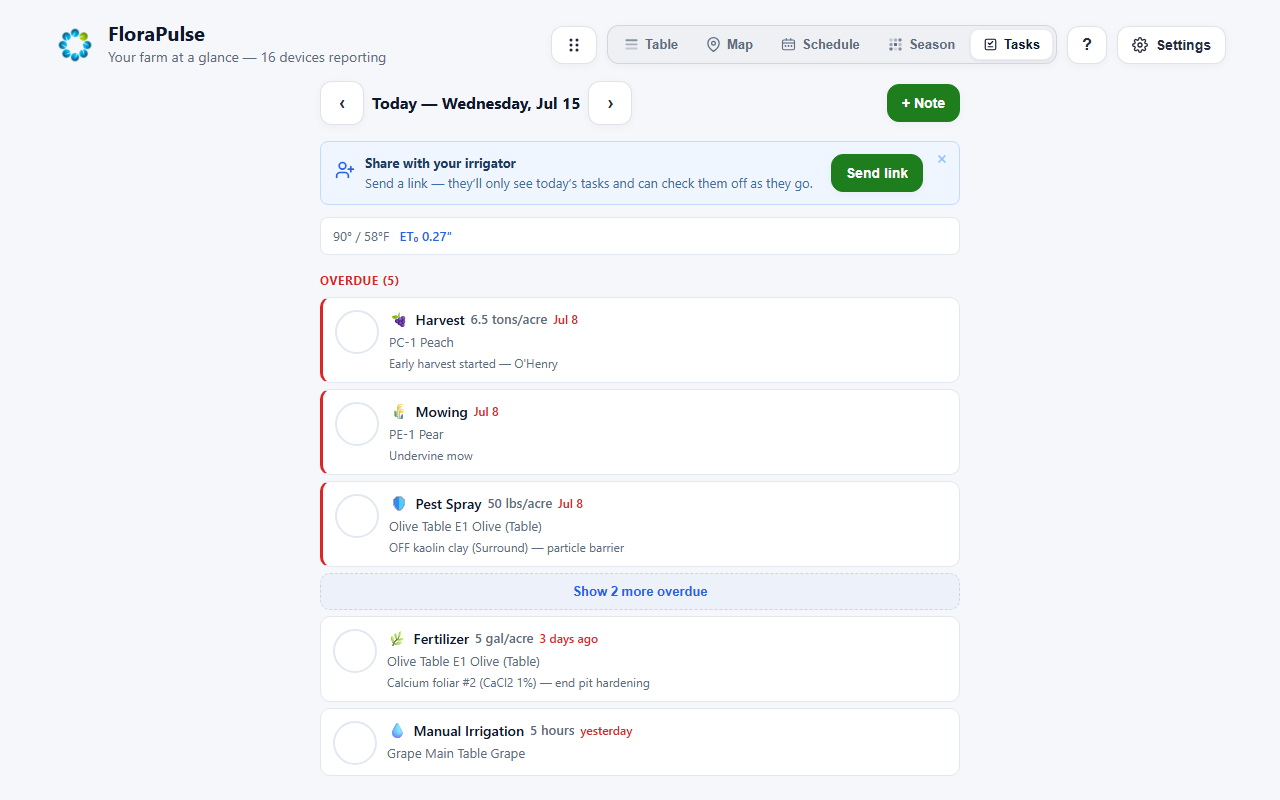
Tasks collects the day's to-dos: irrigations to run, activities you have scheduled, and anything overdue, with what is coming up in the days ahead. Check items off as they are done. Share with your irrigator sends a link that shows only today's tasks, so a crew member can work from it and check items off without seeing the rest of the dashboard.
Alerts, reports and your data
Settings (the gear in the header) holds your account and everything the dashboard sends you.
- Alerts: turn on irrigation and weather alerts by email or text message. Irrigation alerts fire when a block's reading passes its trigger; per-block alert settings live in each block's settings.
- Reports: the weekly digest arrives Monday morning with an irrigation summary, recovery tracking and the weather outlook; the monthly report on the 1st with trends and water savings; and a season review at the end of the season. Each can be switched off separately.
- Units and preferences: temperature, water and length units, the default chart time range, and how blocks are ordered on the dashboard.
- Data export: download the season's readings as a CSV (one row per block per day, the continuous 20-minute data, or one row per irrigation set with its start time, stop time and hours), generate a printable PDF summary report, or download the water-use report for compliance filings.
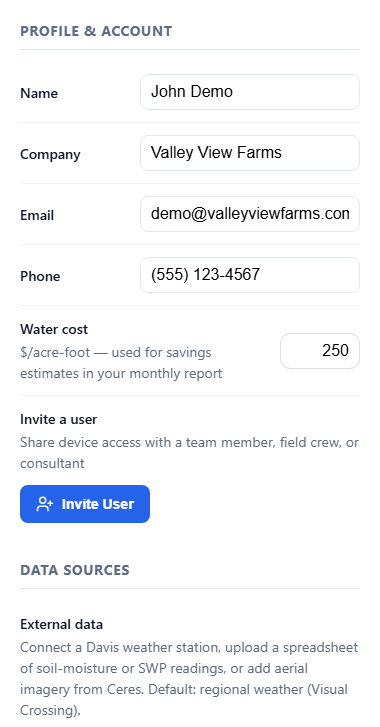
- Invite a user to give a team member, field crew or consultant access to your blocks.
- Data sources: connect a Davis weather station, upload a spreadsheet of soil-moisture or SWP readings, or add aerial imagery.
- Reset password and Log out.
Getting help
- The ? button in the header opens the built-in help: a getting-started summary, the stress levels for every crop, the growth-stage guide, a glossary of every term on the dashboard, and Take the guided tour, which walks you through the main features on your own blocks.
- The Need help? button in the corner of every screen opens a WhatsApp chat with us. You can also email admin@florapulse.com or call or text (530) 220-7668.
- Missing or odd data is usually the logger, not the sensors. The troubleshooting guide at app.florapulse.com/troubleshoot walks through the common causes. We monitor every logger's battery and cellular signal for you and will reach out if one needs attention.