
4G Data Logger Manual
Dataloggers #1000 and above
720 Olive Dr Ste E
Davis CA, 95616
(530) 220-7668
About
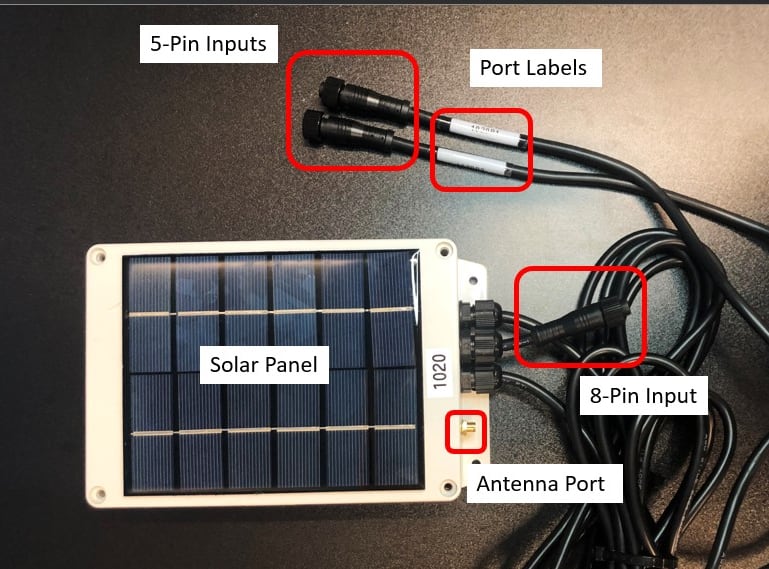
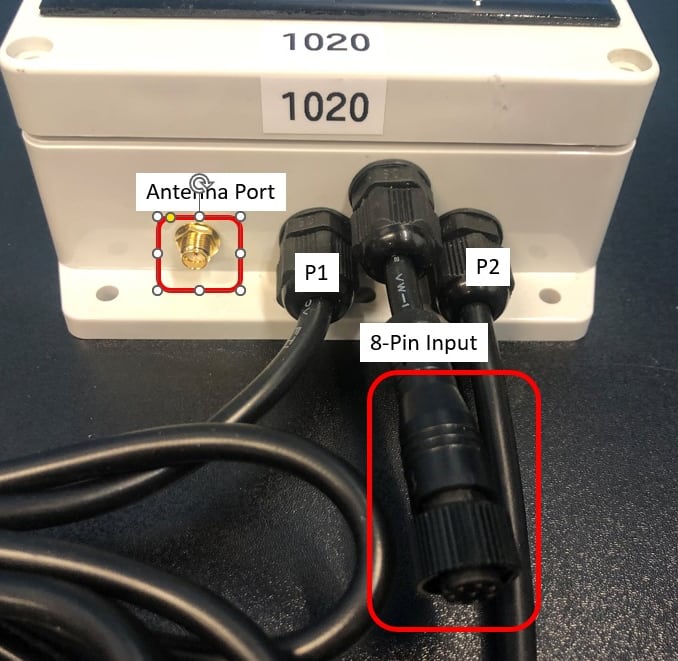
The FloraPulse data logger connects to two microtensiometers and one irrigation line pressure switch (5 psi). It automatically takes measurements every 20 minutes and uploads the data every hour to the FloraPulse cloud. The probes connect using a 5-pin connector to two 10-ft long extension cords and the pressure switch attaches to the short 8-pin connector. It is possible to connect to the logger using a custom USB cable that attaches to the same 8-pin connector as the pressure switch.
This manual includes information on how to:
- Turn on and self-test the logger before installation
- Copy data from the SD card
- Change the SIM card as needed
- Install the pressure switch
- Connect to the logger via USB
- Attach an external antenna
This manual covers use instructions for dataloggers #1000 and above.
Datalogger description
Specifications
- Power: 6 V, 2 W solar panel
- Battery: 3.74 V, 5000 mA-h lithium
- Cellular: 4G NB-IoT/LTE CAT-M1 with 2G EDGE fallback
- SIM card: worldwide use with most carriers
- Waterproof rating: IP65
- Mounting method: zip ties or metal wiring to a branch or dedicated pole
- Where to hang it: in the canopy of any tree within reach of the probe cables (a second or third tree in is fine – it does not have to be the instrumented tree), or on a trellis wire, support post or dedicated pole. It does not need to sit above the canopy. The solar panel must face up and toward the equator (south in the northern hemisphere, north in the southern hemisphere) and see direct sun for part of the day; partial shade is acceptable, dense all-day shade is not. Use at least 3 attachment points so it cannot rotate, and move it clear of the trunk before mechanical (shaker) harvest.
- Inputs:
- 2x FloraPulse analog probes
- 1x irrigation pressure switch
Before installation: turn on the logger and check for cellular signal
The dataloggers are powered by a solar rechargeable lithium-ion battery. The battery is disconnected before shipping to save power. Before installing sensors, we recommend turning on the logger and running the ‘self-test’ that checks for battery voltage, cellular signal, SD card function, and correct time. You should run this self-test in the field at the spot where sensors will be installed to ensure the datalogger has sufficient cellular signal.
Instructions
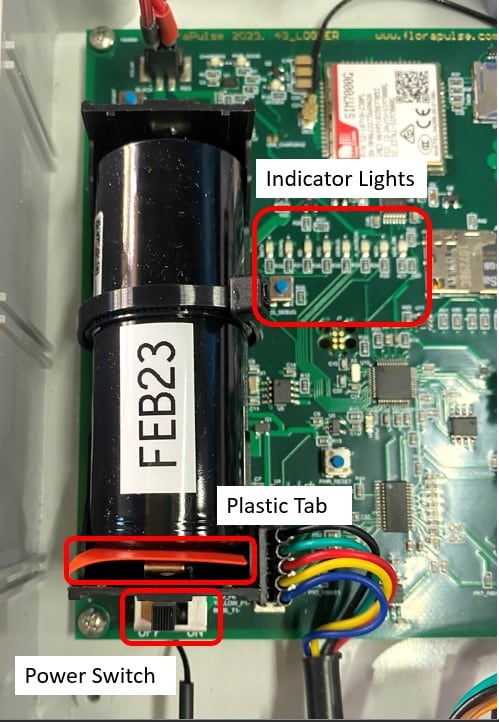 | 1. Unscrew and remove the lid on the datalogger. 2. Find the plastic tab at the end of the battery. While holding the battery in place, gently remove the tab. 3. Find the power switch below the + end of the battery. Switch power to “on”. 4. Find the blue MCU_DEBUG button to the right of the battery (below the indicator lights). 5. Press the button and wait for the “signal” light to flash green (can take up to 3 minutes). 6. Replace the lid and tighten the screws. |
Indicator lights
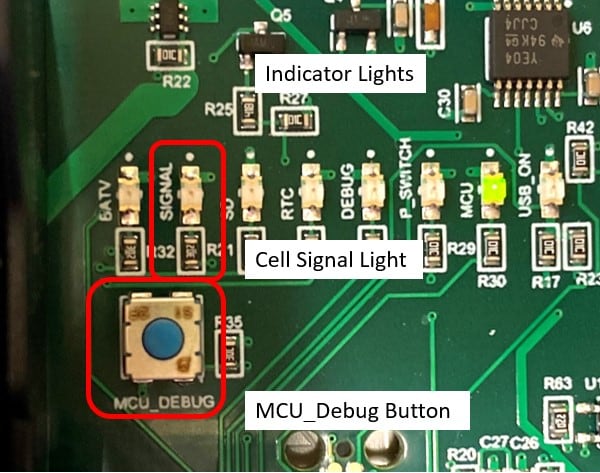
When the MCU_DEBUG button is pressed, the logger runs a self-test and will turn on these lights. Most users should only check the SIGNAL light — the other lights are only useful if troubleshooting issues.
- BATV – battery is more than 50% charged.
- SIGNAL – cellular signal is great (solid green) or ‘ok’ (blinking).
- SD – SD card is inserted and working.
- RTC – datalogger clock is up to date.
Get data from the SD card
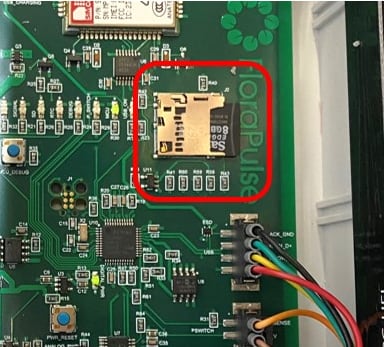
The SD card contains a log of datalogger actions for troubleshooting (####.TXT), and also data files for the sensor measurements (DATA.CSV) and irrigation (IRRI.CSV). The SD card serves as a backup in case the cellular module fails.
The datalogger can also be run in ‘SD-only mode’, which disables cellular uploading functionality and stores all data to the SD card. This mode is useful if the installation site lacks cellular reception. SD-only mode is turned on using the USB menu (explained below).
To remove the SD card: unscrew the datalogger lid using a Philips screwdriver. Push in the SD card to unlock it and pull it out.
Read the SD card with a laptop. Sensor data is stored as raw readings, so you will need to apply a FloraPulse-provided calibration factor to change the millivolt readings to water potential. Use our SD card processing spreadsheet to easily process the SD card data.
You should replace the SD card after reading it to ensure the datalogger can continue storing the information.
APN and SIM card change
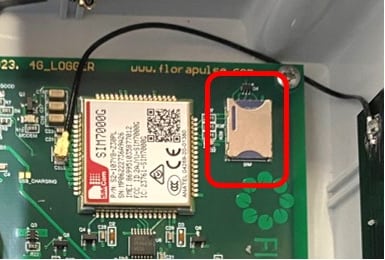
Our dataloggers can use a different SIM card than the one provided. To change the SIM card, open the datalogger box and replace the SIM card with your preferred card. If using a different card, the APN must be changed using the USB menu (explained below).
Installing the pressure switch
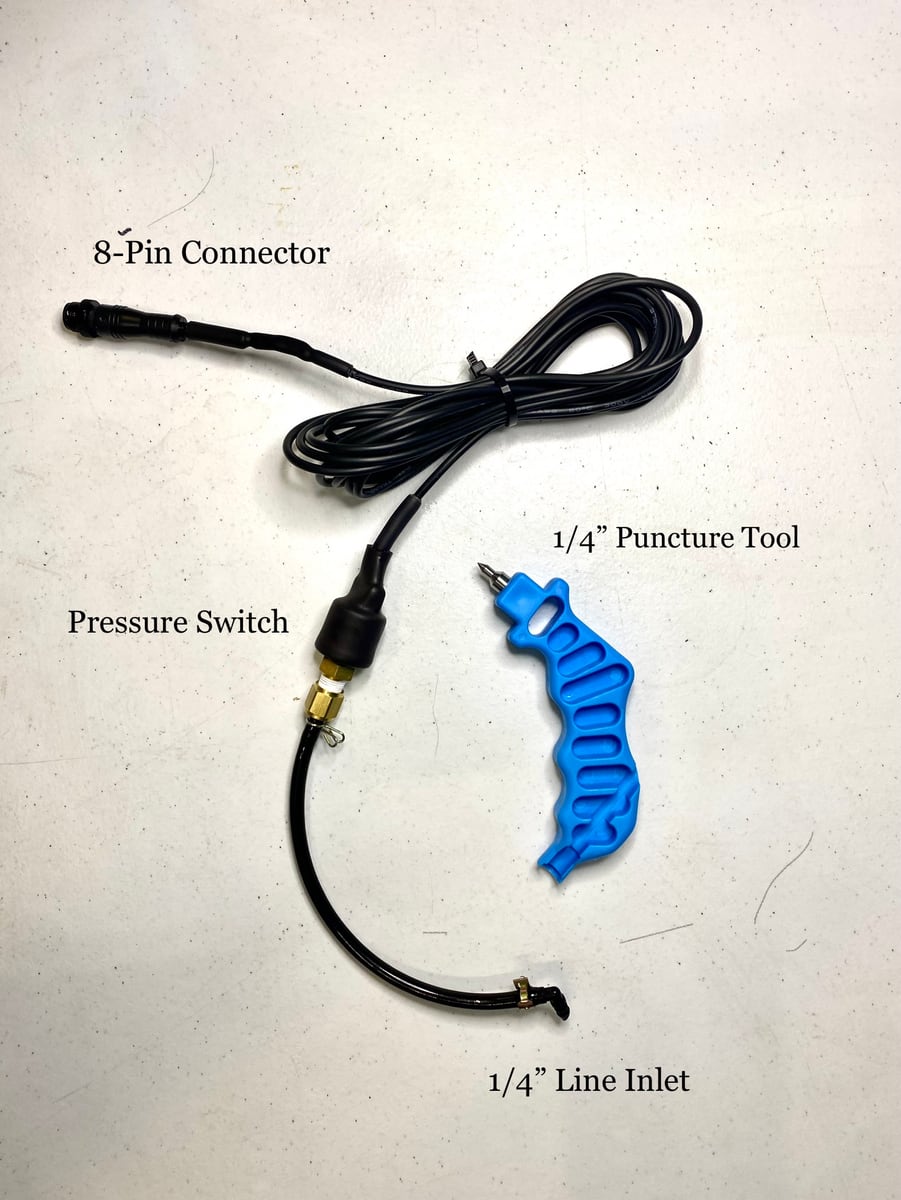
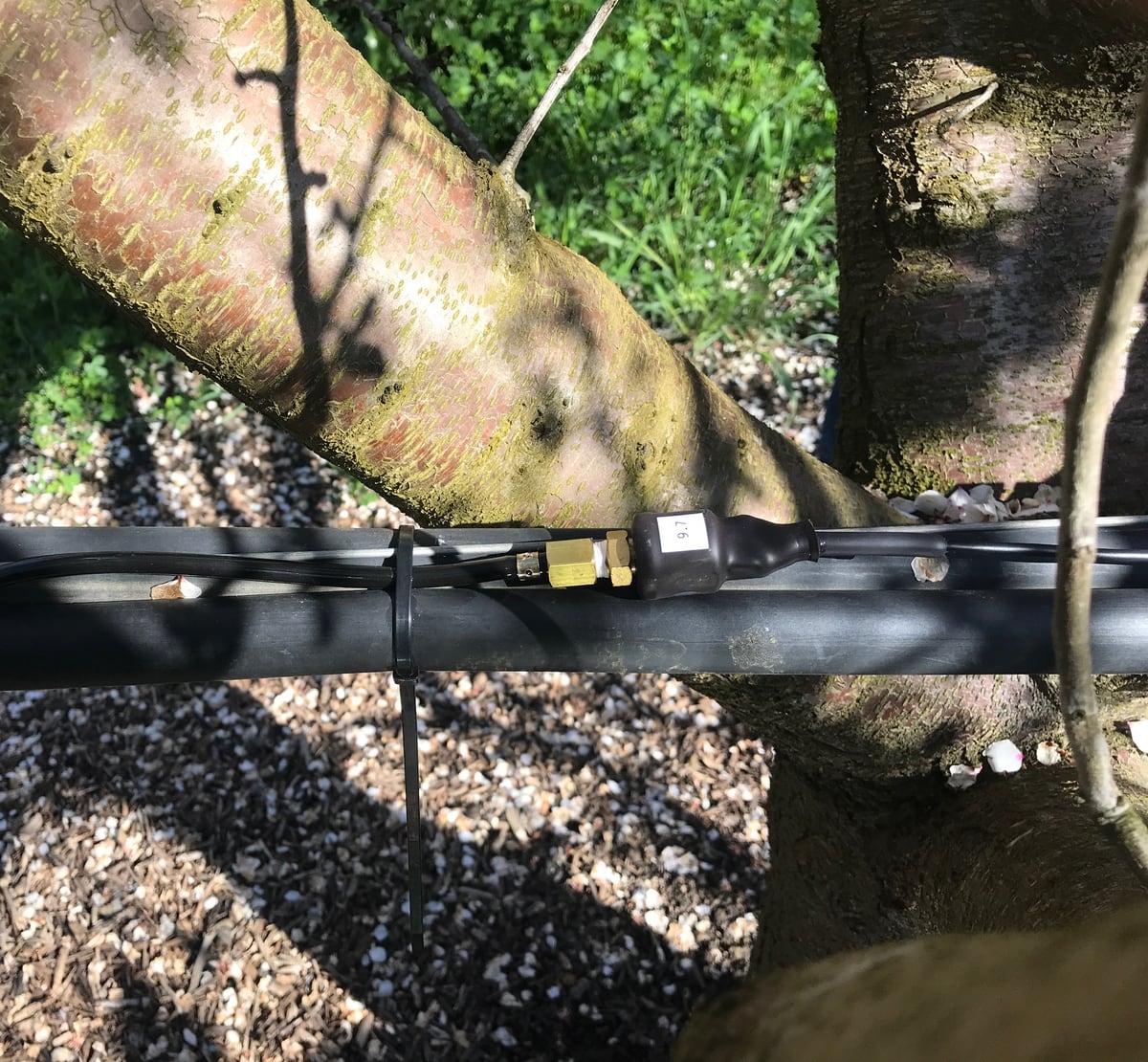
The pressure switch includes an 8-pin connector, wire, and a ¼” line inlet barb. Use the included puncture tool to make a hole into nearby irrigation tubing, then insert the ¼” barb into this hole. Attach the 8-pin connector to the datalogger. Zip tie the pressure switch, tubing and wiring to ensure everything is attached securely and will not get snagged by machinery.
The FloraPulse data logger will monitor the pressure switch for a change of state (OFF→ON or ON→OFF). When a state change is detected, the data logger will update the pressure switch data on the FloraPulse dashboard.
How to connect to the data logger by USB
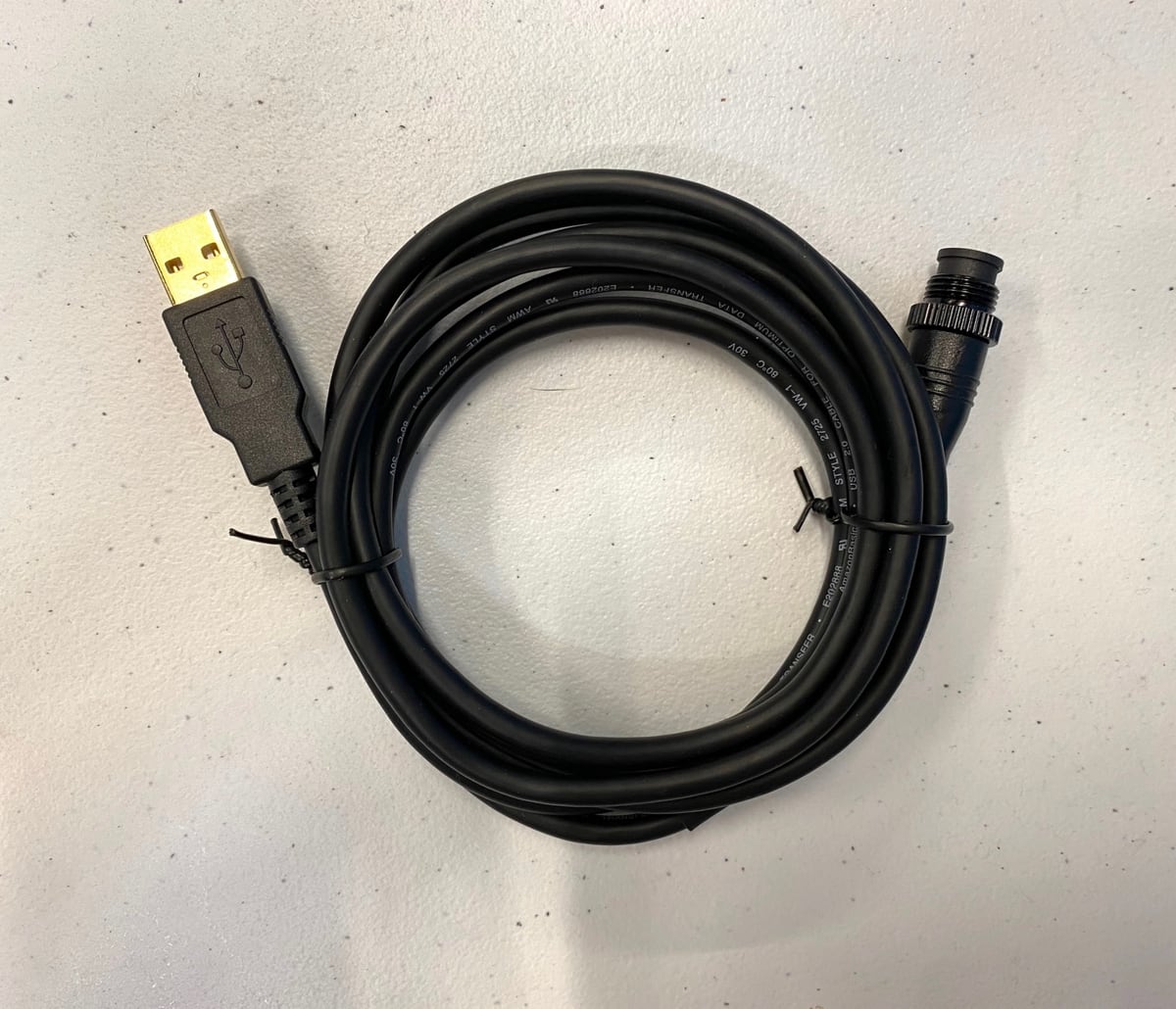
Included in your FloraPulse order is a custom USB cable to connect the datalogger to a computer. This will allow you to view the datalogger activity and change the settings using a serial terminal software.
To connect to the logger, you must first turn on the datalogger by removing the battery plastic tab and moving the switch to ‘ON’. Then, connect to a laptop by plugging in the 8-pin connector on the USB cable, and connecting the USB to your computer. Your computer will chime, indicating the logger is connected. Once connected, you can open your serial capture terminal.
To read the logger, you need a serial capture program. Tera Term is a free serial terminal that can be downloaded on Windows. Go to github.com/TeraTermProject/teraterm/releases to download (pick the latest .exe file). Use the “serial” display and pick the datalogger COM port when connected.
Main menu
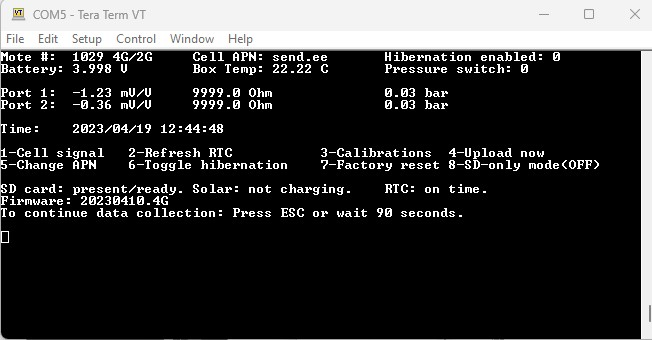
The logger settings will be displayed as shown when you connect to a laptop. At the top, you can see the mote number, the cellular APN, the battery voltage, and the temperature of the logger. Hibernation refers to a battery saving feature that allows the logger to shut off in the absence of sunlight. Below this, you will see the probe values and a list of commands. Ignore the ‘bar’ values – these are only accurate if you have inputted probe calibrations to the logger. On the bottom of this window is a countdown; this is the time remaining to view the menu.
The logger menu stays on for 120 seconds, then starts uploading. There are a few things that you can view and change within this time window. If you miss the 120 second window, unplug the USB and plug it back in to come back to the menu.
Guide to logger commands
The different commands (1-8) can be used by pressing the corresponding number key on your keyboard.
1 – Checking cell signal
FloraPulse dataloggers upload the sensor data via 2G/4G cellular, and thus require adequate cellular data service. We recommend checking that the datalogger has signal and can upload before installing the sensors. You can also do this by pressing the MCU_DEBUG button and waiting for the “signal” light to flash green.
2 – Refresh real time clock
You can use this option to refresh the internal clock of the datalogger if the uploads are being made at the wrong time.
3 – Calibrations
You can manually input the sensor calibrations here. This is useful if you intend to view the sensor data on the SD card. This will not change the online dashboard sensor data.
4 – Upload now
This forces the datalogger to upload a point right away. It can be used to test that the datalogger has good cellular signal and can upload correctly.
5 – Change APN
Use this option to change the SIM network provider. This is required if you use your own SIM card. FloraPulse provided SIM cards should always have cell APN set as “send.ee”.
6 – Toggle hibernation
Hibernation is a feature that allows the logger to automatically shut off if the logger is out of the sun for more than 2 days. The status of this feature will display as “0” or “1” referring to off or on respectively. If you plan on winterizing the logger for harvest, this feature can help save battery over the dormant season. The default value is “0” (disabled).
7 – Factory reset
This option returns all logger settings to factory defaults. You may try this option if the logger isn’t working correctly.
8 – SD-only mode
For researchers, if there is insufficient cellular signal, you can use SD-only mode to avoid cellular uploads all together. You will need to get the data directly from the SD card.
Attaching an external antenna
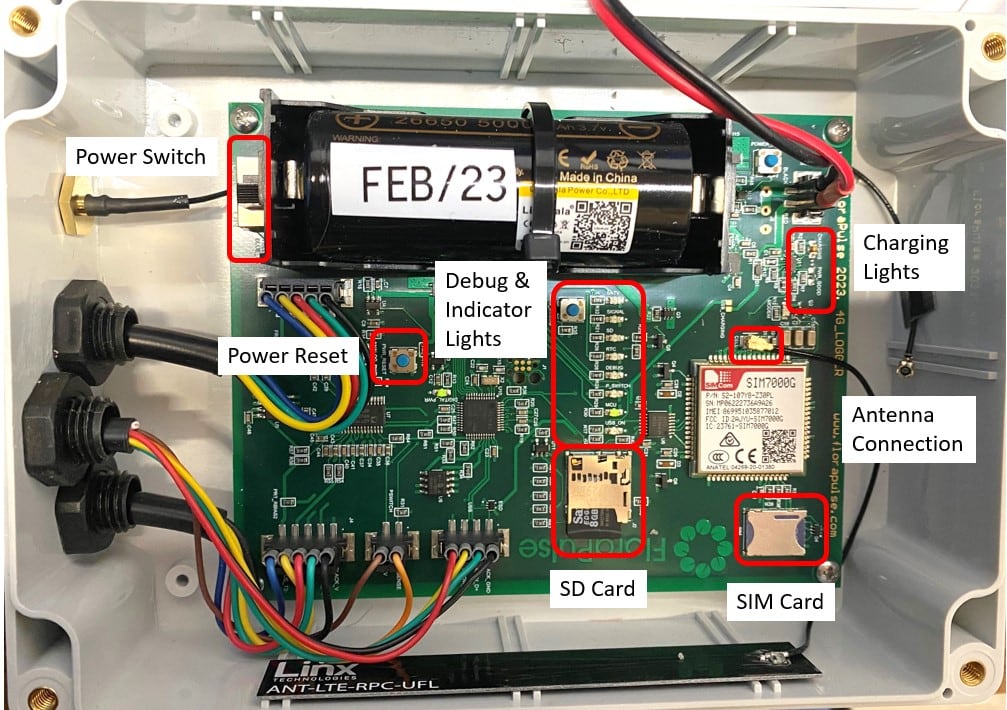
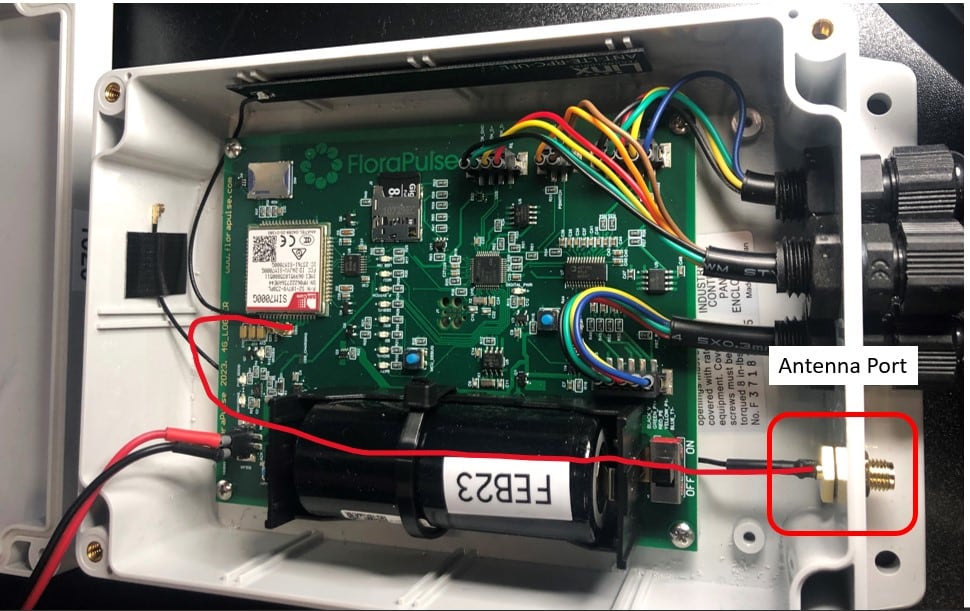
The datalogger contains a small internal cellular antenna (black rectangle stuck to the inside wall). If there is insufficient cellular signal, you may attach a larger external cellular antenna. You need to connect the antenna to the outer port and swap the antenna connection inside the datalogger on the PCB.
Antenna specification, if you source one locally: an external LTE Cat-M1 / NB-IoT cellular antenna with an SMA male connector and a cable long enough to reach a clear spot in or above the canopy. Contact FloraPulse if antennas were included with your order but did not arrive.
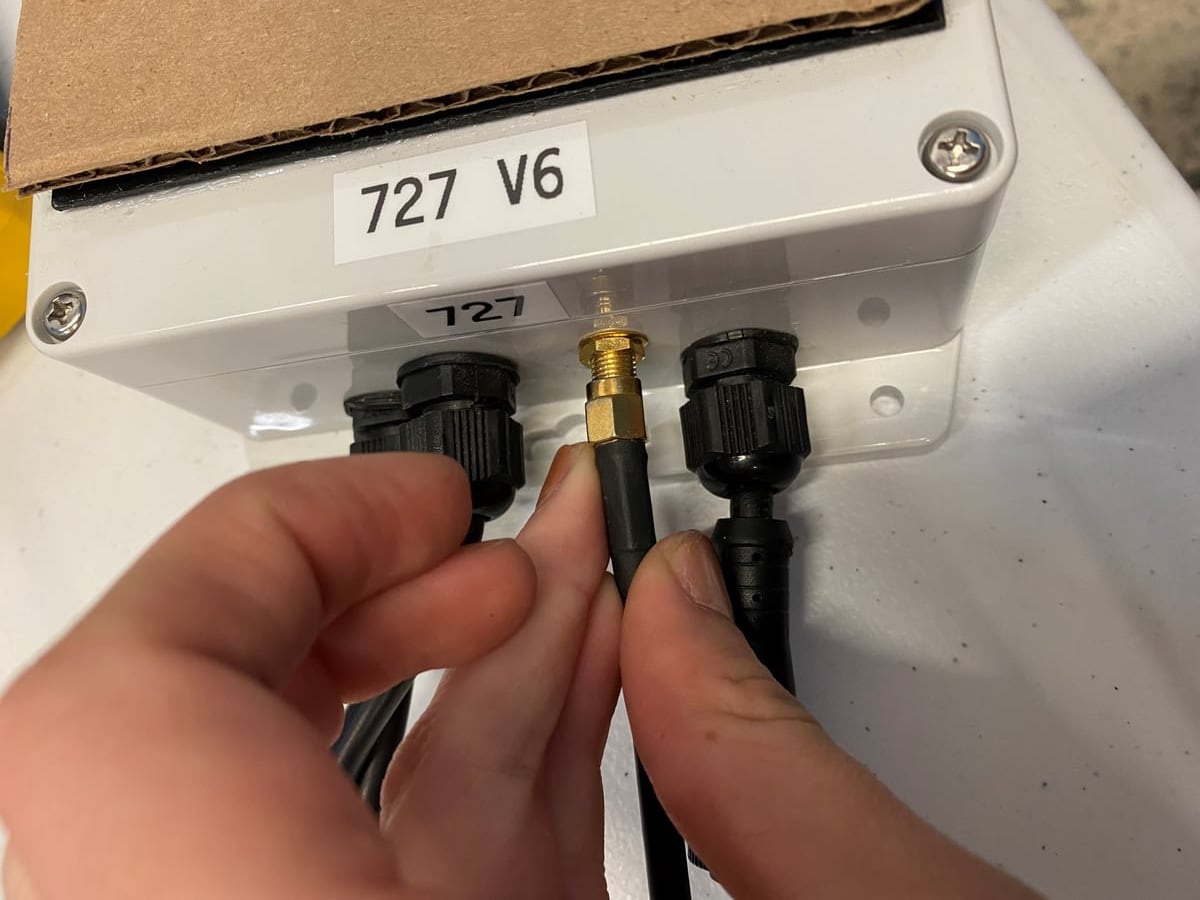 | Connect the external antenna SMA to the antenna port on the outside of the data logger. |
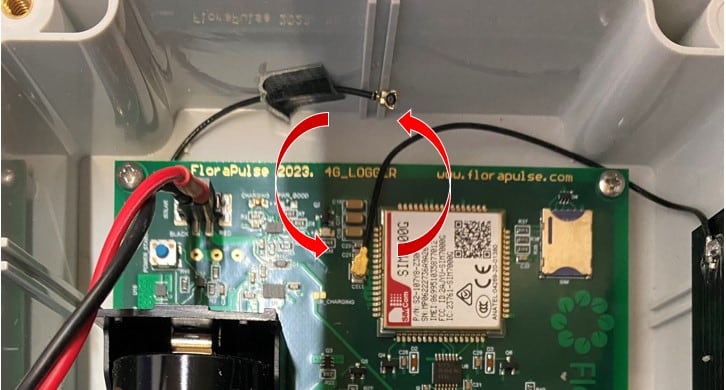 | Locate the antenna wires and the antenna connection on the PCB. The external antenna wire will be taped to the wall of the logger housing. |
 | Swap the wires on the board by removing the internal antenna and attaching the external antenna wire. Use the MCU_DEBUG button or USB menu to check for signal again. |