Firmware Updater — Instructions
Update your logger's firmware yourself, in the field. No computer needed.
Prints landscape on one double-sided sheet. In the print dialog choose Print on both sides and Flip on short edge — those two your browser can't set for us.
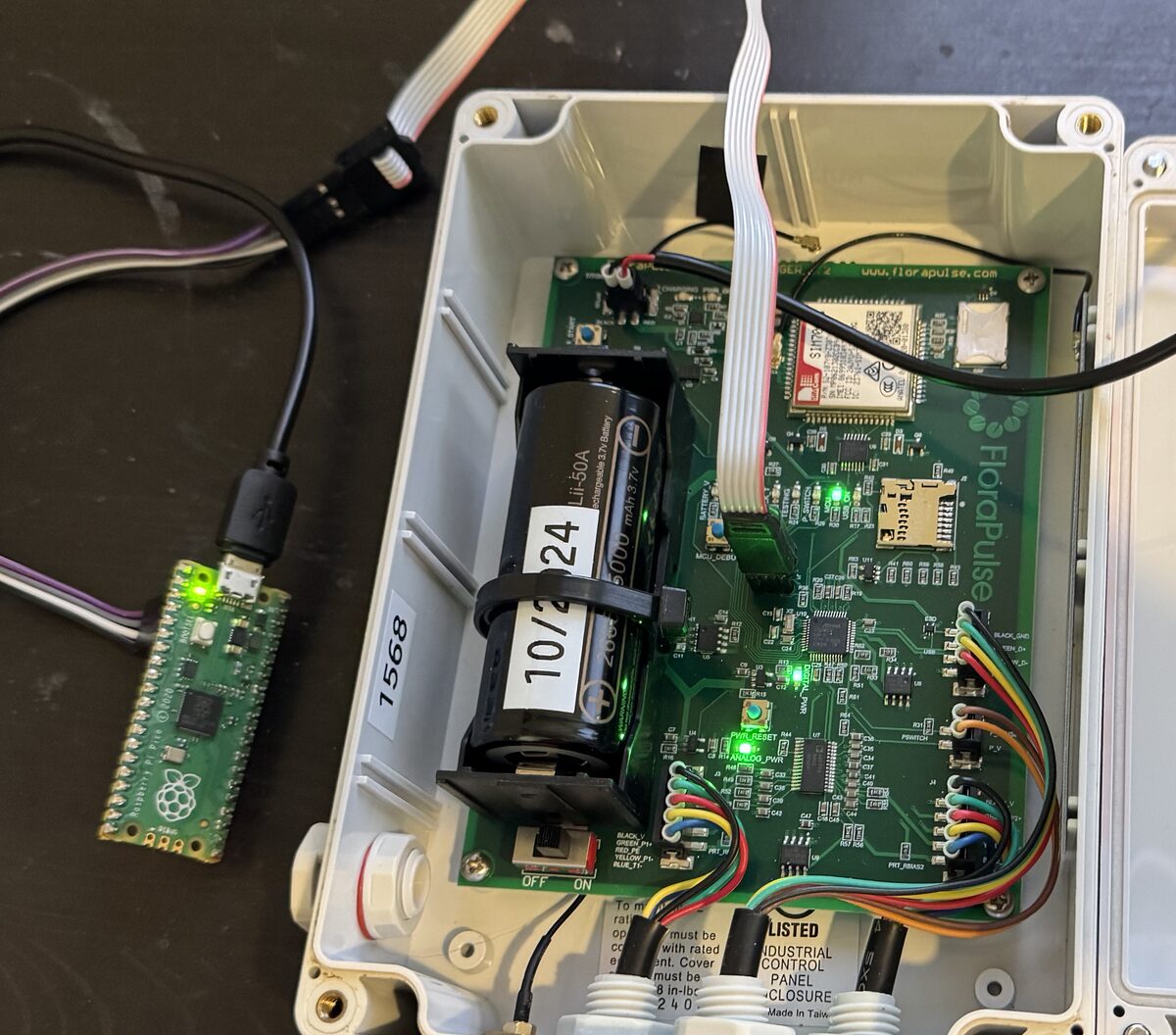
The updater is a small green circuit board with a ribbon cable. It loads new firmware into your FloraPulse logger in about 15 seconds. Everything it needs is already stored on it — there is nothing to install and nothing to plug into a computer.
You need: the updater · a USB power source (phone charger, power bank, or laptop) · your logger, with its battery switch ON.
Update the logger
-
Open the logger's lid and check that the battery switch is set to
ON. The updater cannot talk to a logger that has no power.
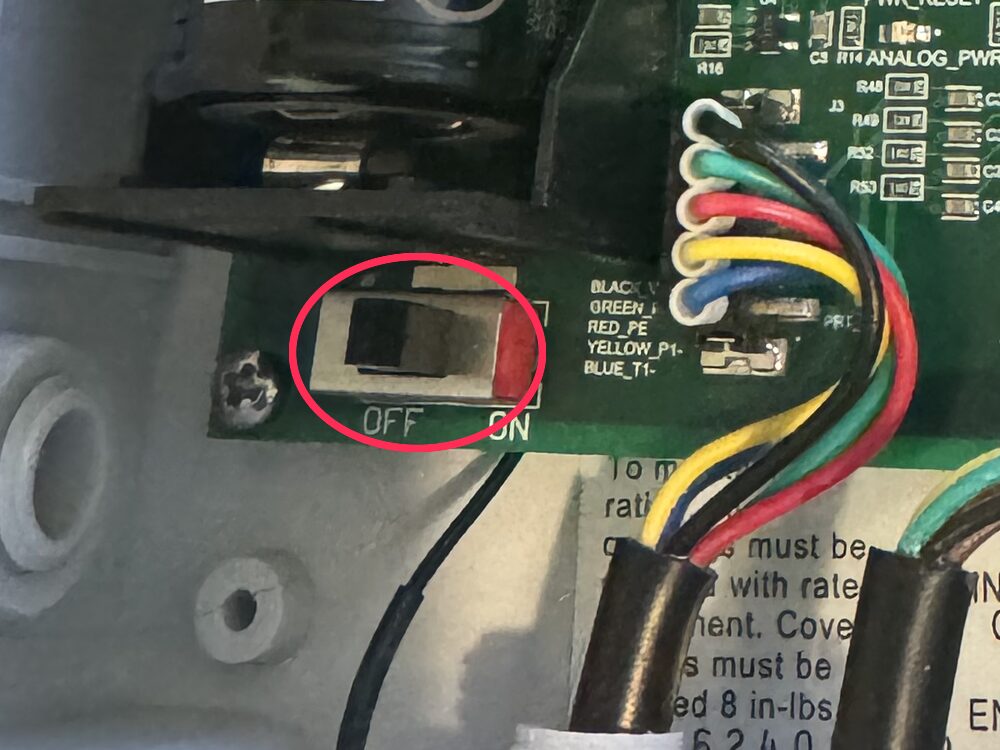
The battery switch (circled), shown in the ON position. -
Find the programming port. It is a small cluster of six gold pads with
three larger holes around them, near the middle of the board just below the small blue
MCU_DEBUG button. It is marked J1.
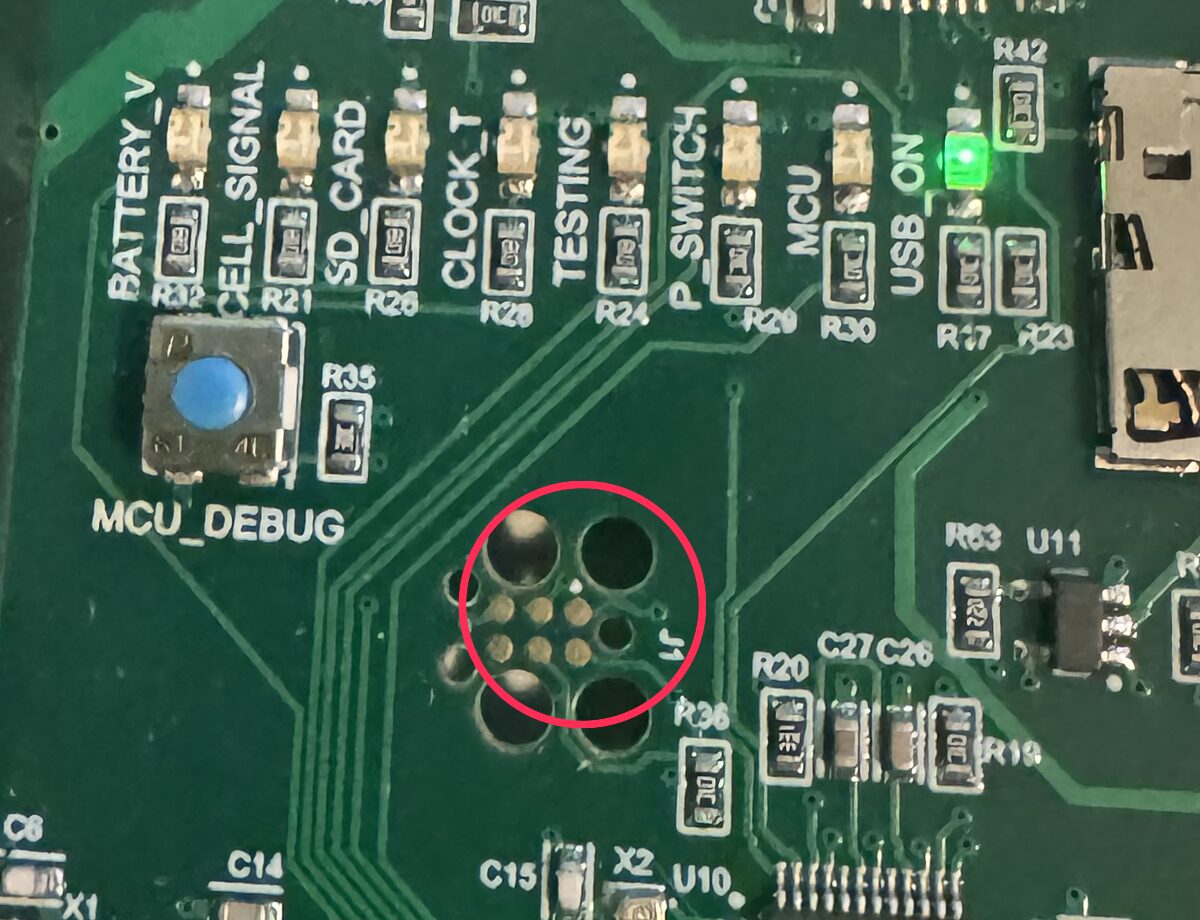
The J1 programming port (circled) — six gold pads, three larger holes. -
Press the cable's plug onto the port. The three small legs drop into
the three holes and hold it in place. Press until it sits flat — you do not need to
force it, and it only fits one way round.
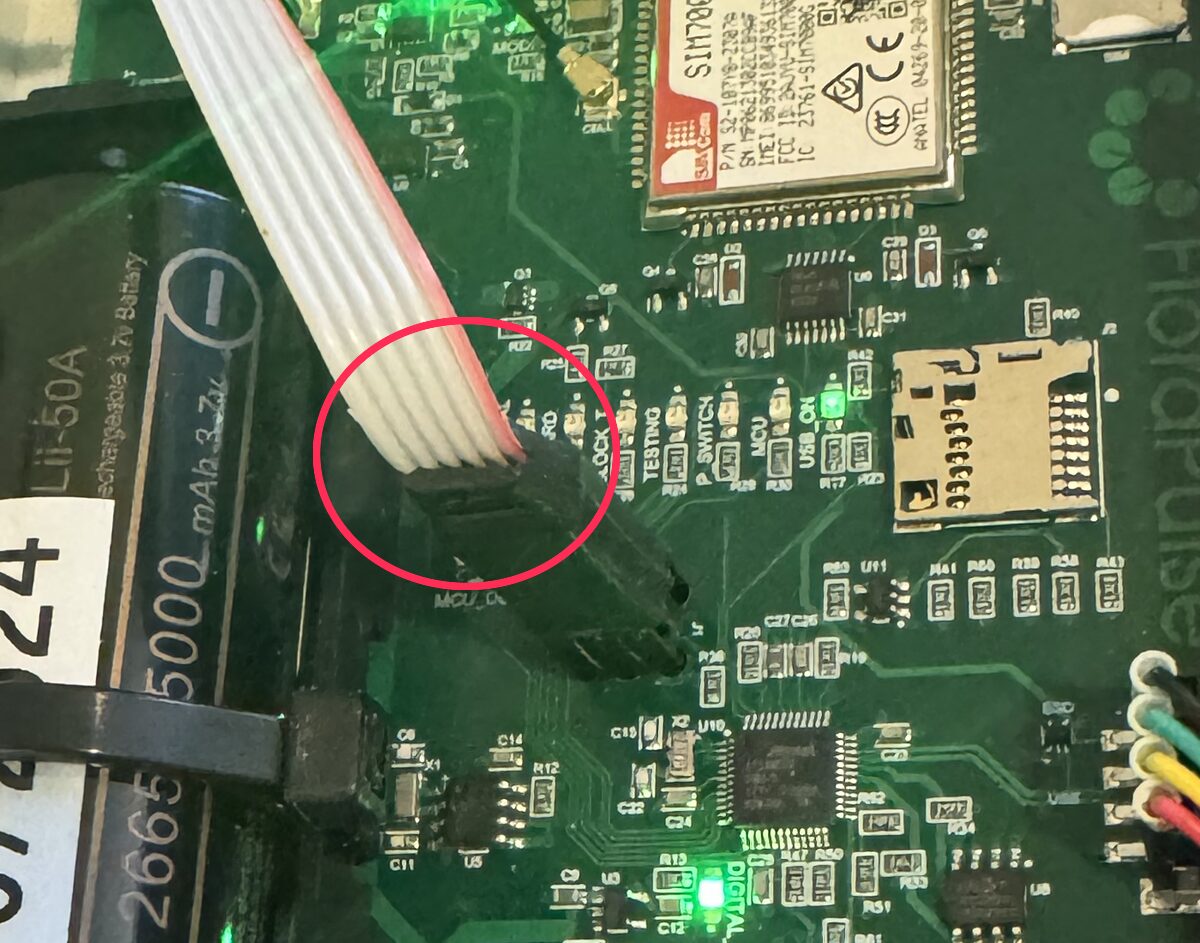
Seated on the port (circled). The legs hold it — no need to keep a hand on it. - Plug the updater into USB power. Its light blips once every couple of seconds: that means it is ready and waiting.
-
Press the small white button on the updater board, marked
BOOTSEL.
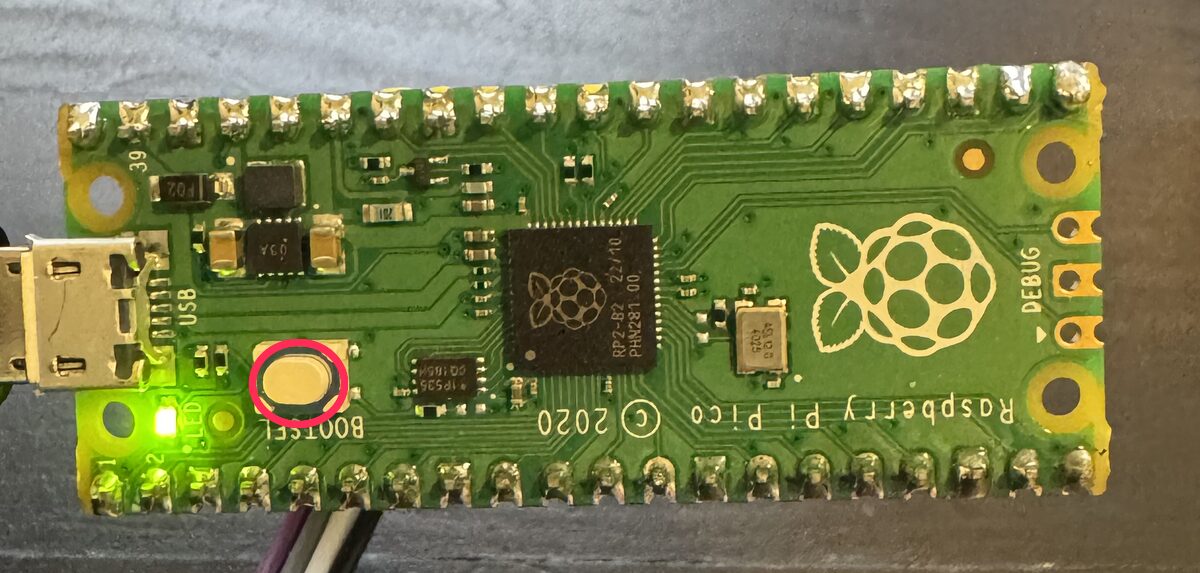
The updater. Press the button (circled); USB power goes in on the left. -
Wait about 15 seconds. The light blinks steadily while it works, then
turns solid ON. Solid means finished and successful.
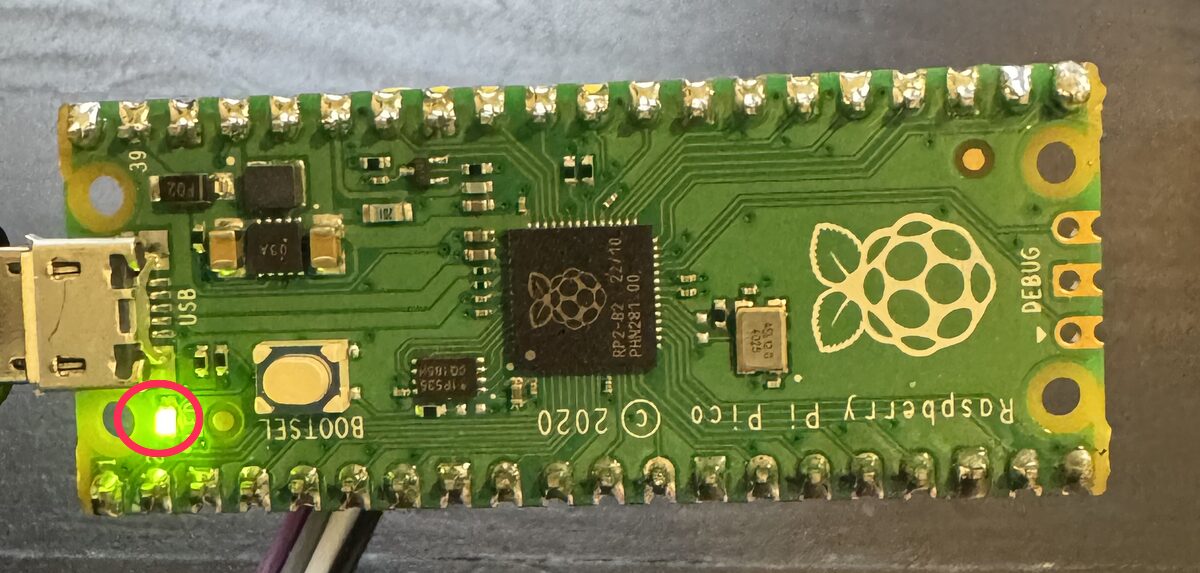
Done. The light (circled) stays on steadily — not blinking. - Unplug the updater and pull the cable's plug straight up off the board.
- Switch the logger OFF, wait two seconds, then back ON. This last step matters — please don't skip it.
- Close the lid. That's it. The logger carries on by itself and fresh data appears online within the hour. It keeps its own identity and settings, so there is nothing to set up afterwards.
What the light is telling you
- Blip every 2 seconds Ready and waiting for you to press the button.
- Blinking steadily Working. Leave it alone.
- Solid ON Finished, successful.
- A repeating pattern of blinks Something needs attention — count the blinks and see the table below.
If the light blinks in a repeating pattern
Count the blinks between the pauses.
| Blinks | What to do |
|---|---|
| 1 | The updater can't reach the logger. Check the battery switch is ON, then press the cable's plug down firmly onto the port and press the button again. |
| 8 | Switch the logger OFF and back ON, then press the button again. |
| Any other number | Note how many blinks you counted and email us — see below. Please don't keep retrying. |
If the light never changes at all for more than two minutes, unplug the updater, switch the logger off and on, and start again from step 1.
When we email you new firmware
From time to time we'll send you a file ending in .uf2. Loading it onto the
updater takes about a minute and needs a computer just this once:
- Hold down the white button while you plug the updater into a computer. Keep holding until it appears, then let go.
- It shows up as a USB drive named RPI-RP2, like a memory stick.
- Drag the file onto that drive. The drive disappears by itself — that means it worked.
There is nothing to install, it works on Windows and Mac alike, and you cannot damage the updater doing this. If anything looks wrong, unplug it and start again.
Questions
Email lee@florapulse.com — tell us your logger number and, if the light was blinking, how many blinks you counted.